
Tap Into Convenience: Add Your SOCU Card To Your Digital Wallet!
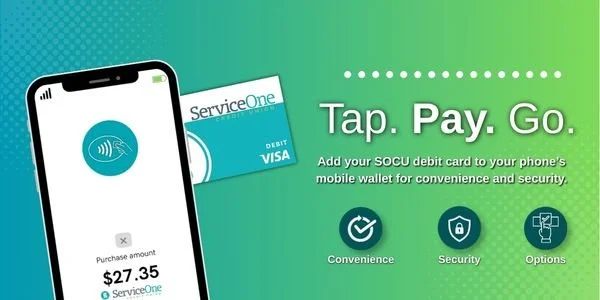
Digital wallets make it easier than ever to pay for everyday purchases quickly, securely, and without needing your physical card. Whether you’re at the grocery store, grabbing coffee, or checking out online, your SOCU debit card can go wherever you do.
If you haven’t set it up yet, don’t worry—we’ve got you covered.
What Is a Digital Wallet?
A digital wallet is a secure app on your smartphone or smartwatch that stores your payment information. Instead of swiping or inserting your card, you can simply tap your device to pay.
Popular options include:
Apple Pay (for iPhone users)
Google Wallet (for Android users)
Why Add Your SOCU Debit Card?
Using your digital wallet comes with some major perks:
Convenience
Most of us keep our phones nearby throughout the day. By adding your debit or credit card to your digital wallet, you always have access to a payment method without needing to carry your physical wallet everywhere.
Digital wallets can store multiple cards and work at millions of locations that accept contactless payments, making them a practical option for everyday purchases.
Security
Many people are surprised to learn that paying with a digital wallet can actually be more secure than using a physical card.
Digital wallets use advanced security features like encryption and tokenization. This means your actual card number isn’t shared with the merchant when you make a purchase. Instead, a unique digital code is used to process the payment.
Most smartphones also require a fingerprint, face scan, or passcode to approve a payment, adding an extra layer of protection.
Speed
Using a digital wallet makes purchases quick and simple. Instead of swiping your card, inserting a chip, or counting cash, and fumbling with your wallet, you can simply tap your phone near the payment terminal to complete the transaction.
Whether you're grabbing a coffee, picking up groceries, or making a quick stop at the store, using your digital wallet can help speed up the checkout process so you can get back to your day.
Contactless Payments
Digital wallets combine speed, security, and convenience in one simple feature. As more businesses adopt contactless payment technology, using your phone to pay is becoming one of the easiest ways to handle everyday transactions.
How to Add Your Card (Step-by-Step)
For iPhone Users (Apple Pay)
Open the Wallet app on your iPhone
Tap the “+” icon in the top right corner
Select Debit or Credit Card
Choose Continue
Enter your card details
Read and agree to the terms
Follow the prompts to verify your card (this may include a text, email, or call)
Once verified, your card is ready to use
To pay in-store, just double-click the side button and hold your phone to the card reader.
For Android Users (Google Wallet)
Open the Google Wallet app
Click Account upper right corner
Select Payment Methods
Tap New credit or debit card
Tap New credit or debit card again
Enter your SOCU debit card details or scan your card
Read and agree to the terms
Follow the verification steps
Once approved, you’re all set
To pay, unlock your phone and hold it to the card reader.
Need a Visual Walkthrough?
We’ve also created quick tutorials to guide you through the process step-by-step. Check them out!